
For those who are new to vim/neovim, I recommend starting with either LazyVim or AstroNVim configuration. This guide is for setting up AstroNvim. It uses lazy.nvim package manager too, the modern plugin manager that handles all installations.
If you’re completely new and are struggling to exit vim, maybe start somewhere here: Learn Vim Progressively.
Go Tools you need to install first
-
Go (obviously). Check if it is installed by
go version -
Install
delve: This is the standard debugger for Go and is essential for debugging support.go install github.com/go-delve/delve/cmd/dlv@latest -
Install a Linter (Recommended):
golangci-lintis a popular and powerful linter.go install github.com/golangci/golangci-lint/cmd/golangci-lint@latest -
Ensure that your Go bin directory (usually
$HOME/go/bin) is in your system’sPATH
Install AstroNvim
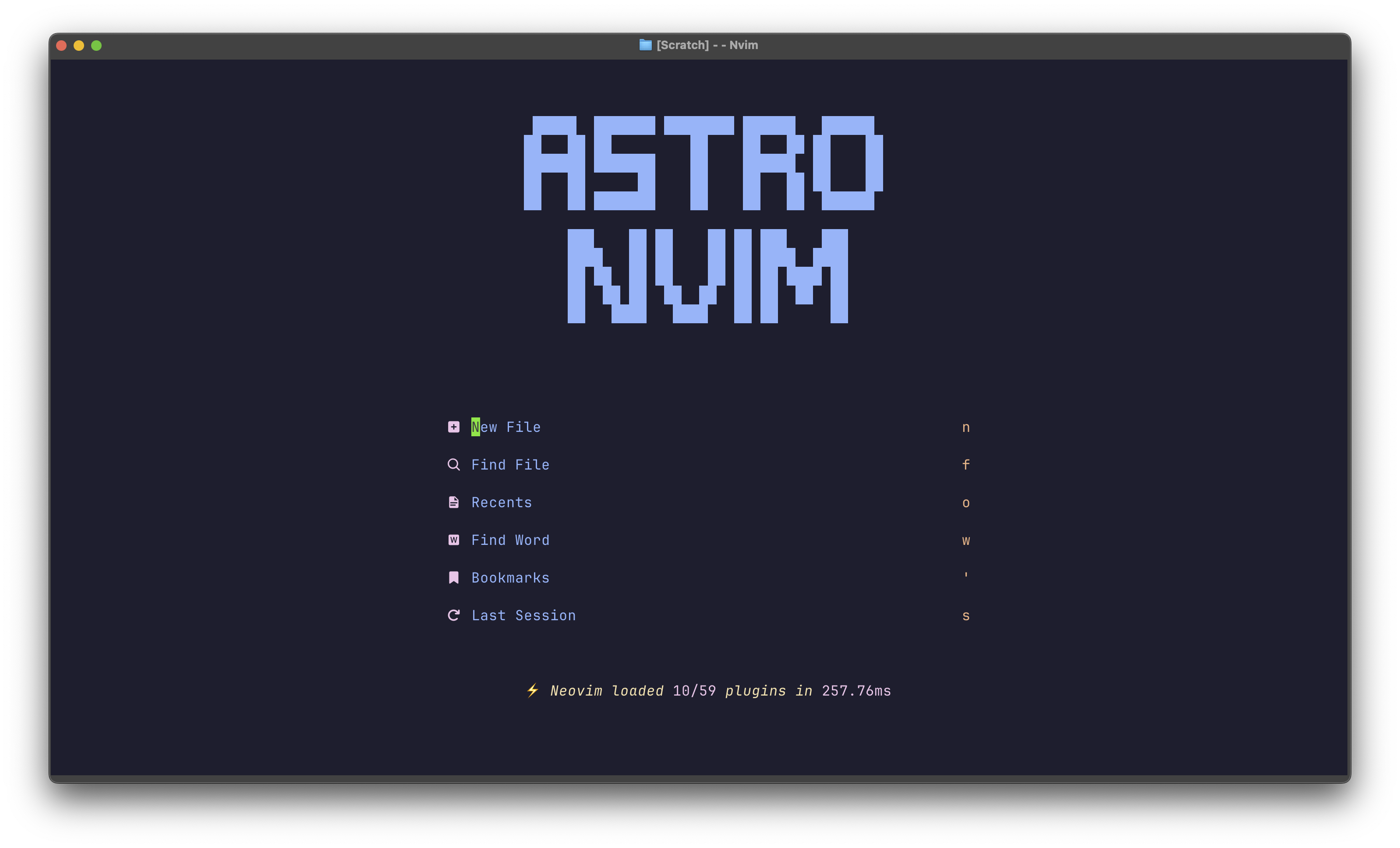
Install Neovim and AstroNvim
Before configuring anything for Go, you need a working installation of Neovim and the AstroNvim configuration pack.
A. Install Prerequisites
AstroNvim has a few dependencies that must be on your system first:
-
Git: To clone the configuration.
-
A C Compiler: For building some plugins (e.g.,
gccon Linux,build-essential). -
Nerd Font: Required to display icons correctly in the UI.
-
Download a font like “FiraCode Nerd Font” from the Nerd Fonts website.
-
Install it on your system and configure your terminal to use it.
-
B. Install Neovim
AstroNvim requires a recent version of Neovim.
-
Linux (Ubuntu/Debian):
# Add the Neovim PPA and install the latest stable version sudo add-apt-repository ppa:neovim-ppa/stable sudo apt-get update sudo apt-get install neovim -
macOS (using Homebrew):
brew install neovim -
Windows (using Winget or Scoop):
# Using Winget
winget install Neovim.Neovim

# Using Scoop
scoop bucket add extras
scoop install neovim
Verify the installation by running
nvim --versionin your terminal.
You may also need to install npm. The best way to get npm is by installing Node.js. Using a version manager like nvm is highly recommended on Linux and macOS, as it avoids permission issues and makes it easy to switch between Node versions. But you can also just
brew install nodeC. Back Up Your Old Neovim Configuration (Important)
If you have an existing Neovim setup, back it up to avoid conflicts. You’ve been warned.
Run these commands to move your old files:
# Back up existing configuration
mv ~/.config/nvim ~/.config/nvim.bak

# Back up existing local data
mv ~/.local/share/nvim ~/.local/share/nvim.bak
D. Install AstroNvim
You can either:
-
clone the AstroNvim repository into your Neovim configuration directory:
git clone --depth 1 https://github.com/AstroNvim/AstroNvim ~/.config/nvim -
or, use their template to start (the instructions are in the README):
-
or, use my config: https://github.com/ikristina/nvim_config
- But preferably, go through the configuration/customization process yourself.
Enable the AstroNvim Community Pack
If you copied my config, you may skip this.
This is the simplest method. The community pack will automatically install and configure the Go language server (gopls), debugger (delve), formatters, and other useful tools.
-
Create a new file for your community plugin specifications at:
~/.config/nvim/lua/user/community.lua -
Add the following Lua code to this new file. This tells AstroNvim to use the community-managed pack for Go.
-- ~/.config/nvim/lua/community.lua

return {
  -- Add the community repository for extra plugins
  "AstroNvim/astrocommunity",
  -- Add the Go pack
  { import = "astrocommunity.pack.go" },
}
Set up treesitter to work with Go
nvim-treesitter provides code highlighting. To configure go,
---@type LazySpec
return {
  "nvim-treesitter/nvim-treesitter",
  opts = {
    ensure_installed = {
      "lua",
      "vim",
      -- add the following arguments for go:
      "go",
      "gomod",
      "gosum",
      "gowork"
    },
  },
}
For any other additional plugins
Use :Mason and select a plugin you want to install. Install by pressing i on that plugin.
For example, if you are working with gRPC, you’d probably want to install proto pack. I’m assuming you have buf installed if you work with gRPC but if not, your prerequisite for this pack is to do either brew install buf or go installgithub.com/bufbuild/buf/cmd/buf@latest
The config should look something like this:
-- ~/.config/nvim/lua/community.lua

return {
  -- Add the community repository for extra plugins
  "AstroNvim/astrocommunity",
  -- Add the Go pack
  { import = "astrocommunity.pack.go" },
  { import = "astrocommunity.pack.proto" }, -- Add this line
}
Restart Neovim. You’ll be prompted to install the new plugins and Mason packages (buf, buf-language-server, protolint). Press Enter to approve the installation.
The full list of supported packs: AstroNvim Community Packs
Conclusion
 And you’re done.
Some commands that can be useful for navigation and control: https://github.com/ikristina/nvim_config/blob/main/COMMANDS.md
For anything else, refer to the AstroNvim documentation which is quite extensive.
Comments